Client Portal, BuildPass Agent, and MCP
Client Portal
Share project progress with your clients from inside BuildPass, instead of stitching it together over email and chat. The new Client Portal gives builders a controlled, read-only view of the items they choose to share - site diaries, drawings, documents, photos, schedules, and form responses.
There are two ways to share:
- Share specific items - a photo, a drawing, a form response, or an individual site diary - one at a time.
- Share a folder once and any future photos, drawings, or documents dropped into it are shared automatically.
Admins can also:
- Invite clients by email and name, and resend invites if needed.
- Impersonate a client to preview exactly what they'll see before sharing.
- Send updates from the Updates tab - standalone, or tied to a shared item - and edit them after sending.
Clients sign in by mobile phone number, with no usernames or passwords. Once in, they see the latest shared items on their project overview, updates from the builder that link straight to the source item, and downloadable forms and reports. Anything you haven't shared simply doesn't appear.
Available on Standard plan and above. Lite customers get a trial - reach out to enable it. To get started, open Settings > Client management and invite your first client.
BuildPass Agent
Find information, prepare reports, and complete admin work without clicking through every module. BuildPass Agent is the AI assistant native to the admin app - it works with your project context, reads the records you have access to, and helps complete real construction admin tasks across the product.
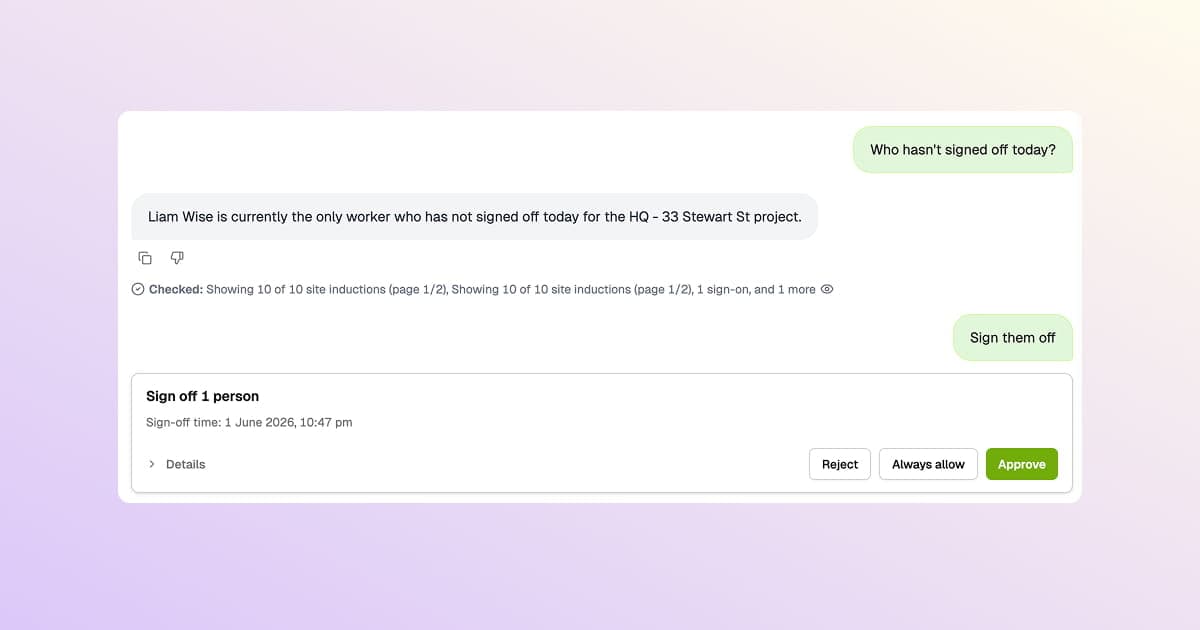
Use BuildPass Agent to help with:
- Finding project records, workers, companies, drawings, RFIs, actions, and site activity.
- Drafting reports, summaries, charts, and CSV exports from BuildPass data.
- Creating actions, defects, RFIs, subcontractors, and register items from pasted lists or spreadsheets.
- Creating and updating reusable templates from source documents.
- Working through forms, schedules, drawings, SWMS, reports, and saved AI instructions.
BuildPass Agent follows your normal BuildPass permissions. If you can't access a project, module, or record, the agent can't access it for you.
To turn it on, open Settings > AI Tools, enable AI Tools, then enable AI assistant.
BuildPass MCP
Connect BuildPass to Claude and other AI hosts through MCP, so your team can drive BuildPass from the AI tools they already use. Once connected, Claude works against the same authenticated tool surface as BuildPass Agent - same permissions, same builder scope, same module access, same validation, and the same audit trail.
BuildPass MCP supports product-aware workflows for forms, templates, schedules, drawings, SWMS, reports, AI memories, and safe project record updates.
To set it up, open Settings > MCP, copy the MCP URL or setup commands, then complete browser authorisation from your MCP client. The MCP settings page includes setup instructions for Claude Code, Codex, and manual MCP clients.
When should you use Agent vs Claude?
Use Agent when you're already working inside BuildPass and want AI help in context - on a project, in a module, mid-task.
Use Claude (or another MCP client) when you'd rather work from the AI tool your team already lives in - to pull BuildPass data into a wider conversation, mix it with your other tools, or run a workflow that spans more than just BuildPass.
Either way it's the same data, the same permissions, and the same audit trail - so you can pick whichever fits the moment, or use both.