Scheduling critical path, columns, and lag times
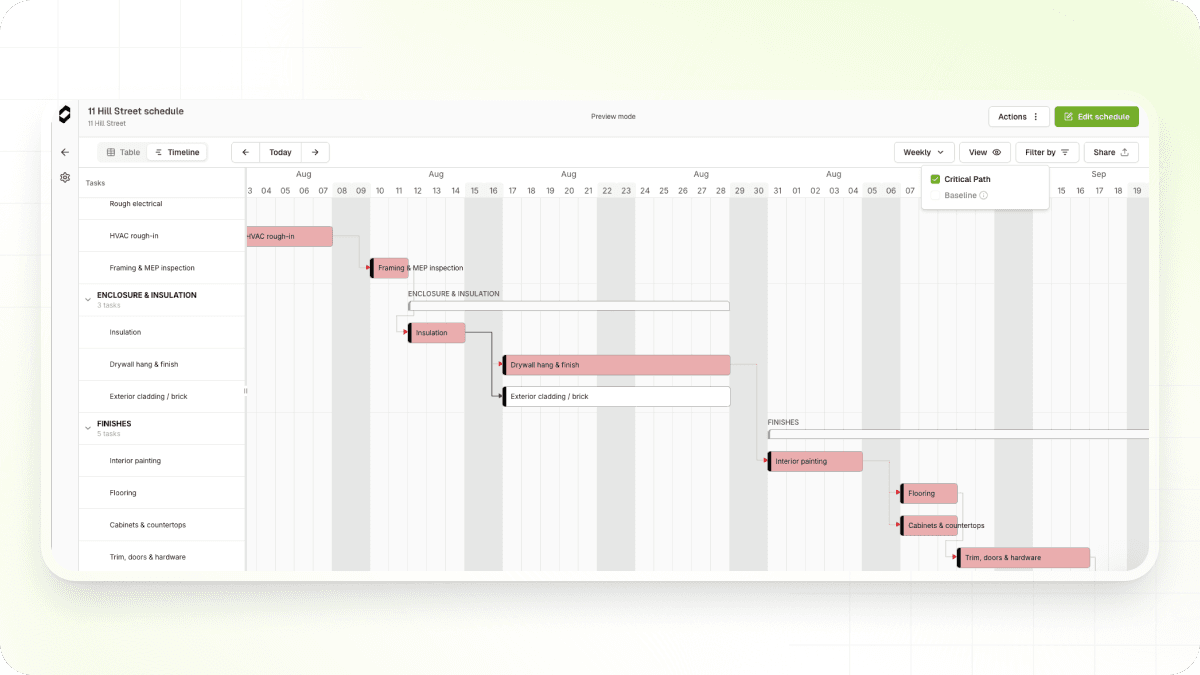
See which tasks directly control your project's end date with the new critical path view. When it's on, critical tasks and their dependency arrows are highlighted in red so you can spot risk at a glance.
Critical path
- Toggle Critical Path on or off from the View menu (eye icon) in timeline view
- Critical tasks and their dependency arrows are highlighted in red
- Filter to show only critical tasks from the Filter panel, in both timeline and table view
- The Baseline toggle has moved into the same View menu so display options live together
Try it by opening any schedule and clicking the View menu (eye icon) to toggle Critical Path.
Timeline columns
Choose which columns show alongside the timeline so you can see the details that matter most - status, duration, dates, or assignees - without opening each task.
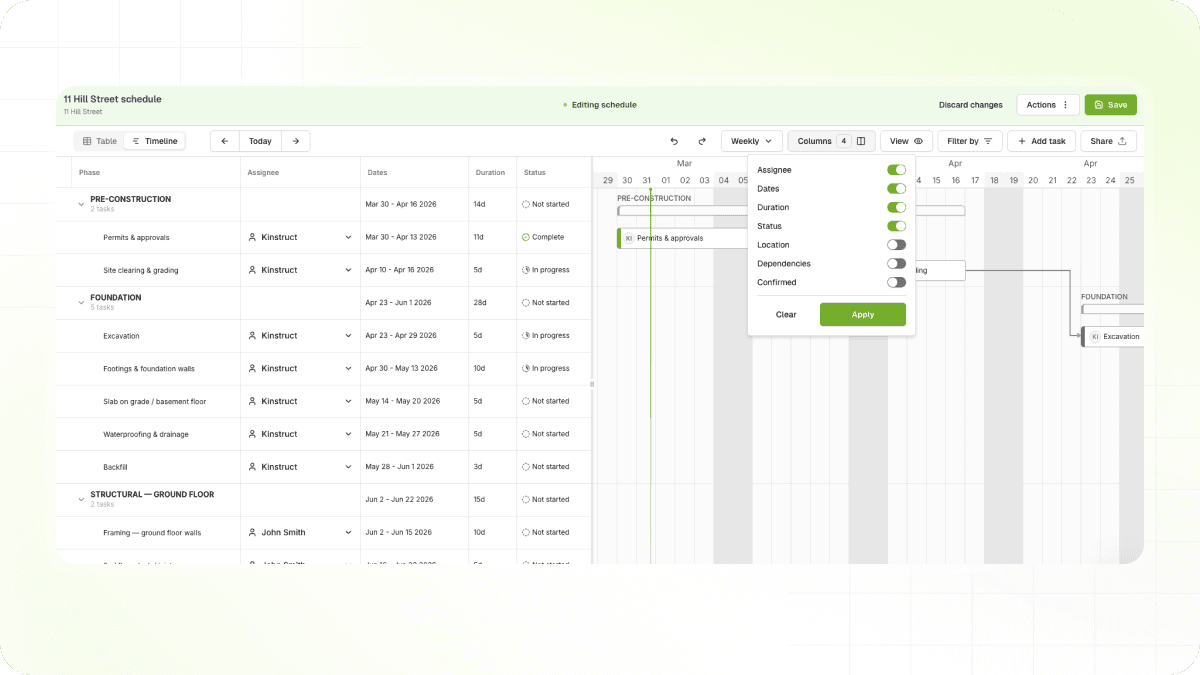
- Toggle columns from the Columns button in the top-right Gantt Actions Bar
- Drag-and-drop column headers to reorder
- Column order and visibility preferences are saved per schedule
- Available columns include status, duration, start/finish dates, assigned contractors, and more
From Scheduling, open any schedule and click Columns in the top-right Gantt Actions Bar.
Lag and lead times
Model real-world dependencies where flooring needs time to cure before painting can start. Add lag (delay) or lead (overlap) to any dependency and dates update automatically across the schedule.
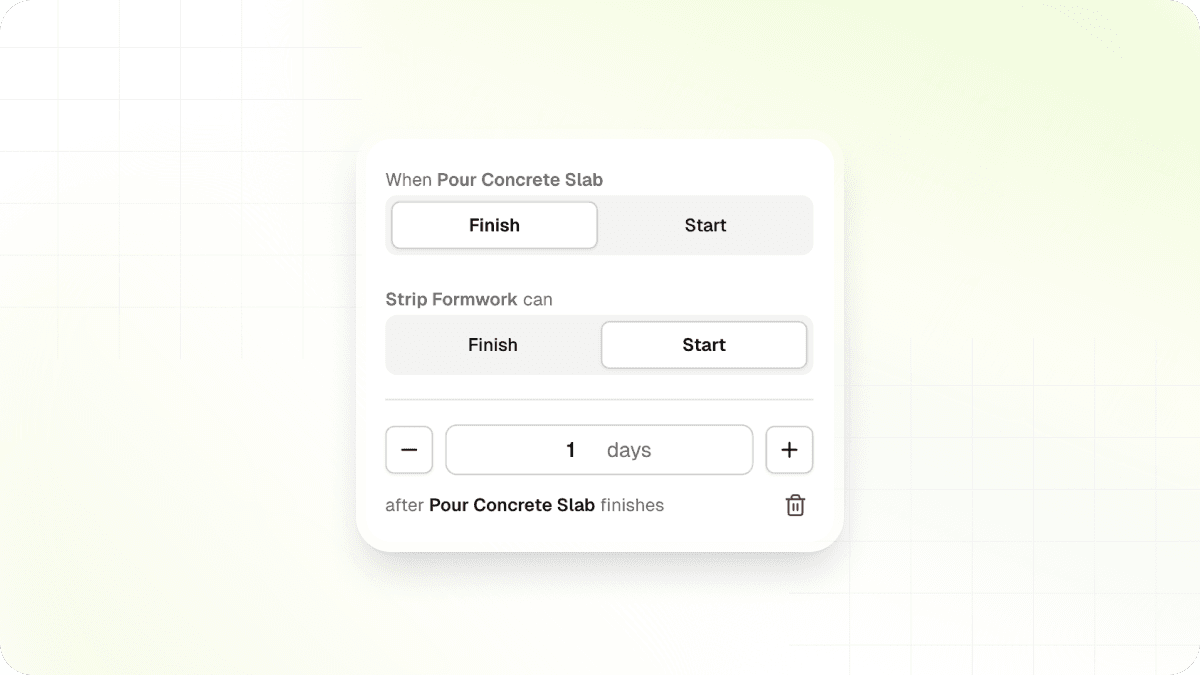
- Add lag or lead values to any of the four dependency types: Finish-to-Start, Start-to-Start, Finish-to-Finish, and Start-to-Finish
- Dependent task dates update automatically as offsets are applied
- Drag tasks on the timeline to create gaps or overlaps, and offset values are calculated automatically
To get started, open a task's detail panel, find the dependency, and select "Add lag".